
How to Use the MAGI-2 AI Video Generator Step by Step
A practical walkthrough covering input modes, four-part prompt syntax, synced dialogue cues, output settings, and credit-saving habits.
To create a video with MAGI-2, open Magi 2 Play in any desktop or mobile browser (no software install), pick Text/Image to Video, First & Last Frame, or Multimodal Reference, write a four-part prompt covering subject, camera, lighting, and audio, set duration (4s–30s) and aspect ratio, and click Generate. Every clip renders on cloud GPUs at native 1080p, 25fps with synced audio for 6 credits/second.
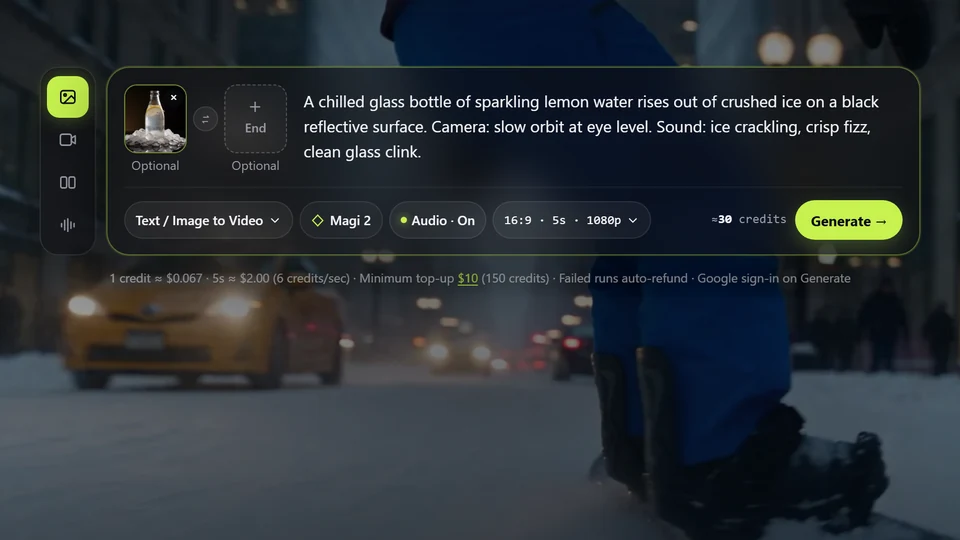
How do you create a video with MAGI-2 step by step?
You can generate a 1080p, 25fps MAGI-2 video with synchronized audio in four browser steps without installing any desktop software or local GPU. Open Magi 2 Play, enter a four-part prompt or upload optional reference media, configure duration and aspect ratio, and download your finished MP4 once cloud rendering completes.
- Choose your generation mode in the composer. Select Text / Image to Video for text prompts or single-image animation, First & Last Frame when you need both opening and closing compositions locked, or Multimodal Reference when combining up to 20 images, videos, and audio clips.
- Write a concrete prompt or attach reference assets. Describe the subject, physical motion, camera movement, lighting, and exact sound cues. Optionally drop a Start frame (JPG, PNG, or WebP under 5MB) or attach reference media links to anchor identity and style.
- Configure output settings and review the credit cost. Pick your aspect ratio (
21:9,16:9,4:3,1:1,3:4, or9:16), select clip length (4s,5s,10s,15s,20s, or30s), and keep Audio · On enabled for native synchronized sound. The composer displays the exact credit deduction before you submit (6 credits per second, so30 creditsfor a 5-second clip). - Sign in with Google on Generate and download the MP4. Click Generate, authenticate with one-click Google sign-in if you are not yet signed in, wait roughly 1 to 4 minutes for a 4s–10s native 1080p render, and click Download MP4. Finished clips stay saved in your Account library.
What inputs and output settings does MAGI-2 support?
MAGI-2 accepts text prompts up to 15,000 characters, optional Start and End keyframes, and up to 20 multimodal reference files, outputting native 1080p video at 25fps for 4 to 30 seconds. Understanding each parameter up front prevents rejected jobs and wasted credits.
| Setting | Supported values on Magi 2 Play | Practical recommendation |
|---|---|---|
| Resolution & frame rate | 1080p native at 25fps (no 480p/720p draft mode) | Validate complex scenes at 4s or 5s before rendering 20s–30s takes. |
| Clip duration | 4s, 5s, 10s, 15s, 20s, 30s (30s-max on Pro & Studio) | Use 5s for social hooks and tests; 10s–30s for multi-beat dialogue or product stories. |
| Aspect ratios | 21:9, 16:9, 4:3, 1:1, 3:4, 9:16 | Match your Start frame aspect ratio to avoid unexpected cropping. |
| Multimodal references | Up to 20 files total (10 images, 5 videos, 5 audio) | Upload clean, well-lit stills for character or packaging consistency. |
| Audio track | Native 48kHz stereo dialogue, foley, ambience, music | Included at zero extra credit surcharge; toggle off only for silent plates. |
| Credit rate | 6 credits/sec (24 / 30 / 60 / 90 / 120 / 180 credits) | Failed renders due to upstream errors auto-refund 100% of credits. |
What prompt structure gives the best MAGI-2 video results?
A four-part prompt structure—Subject & Action, Camera Direction, Lighting & Look, and Explicit Audio—produces the cleanest motion and most reliable lip-sync in MAGI-2. Because MAGI-2 renders picture and sound on a single 25fps timeline, vague one-line prompts often produce generic camera drift or unwanted background music.
Use this repeatable formula inside the composer:
[Subject & Action]: Who or what is on screen and the exact sequence of movement.
[Camera]: Lens focal length, framing, and motion (e.g., locked 85mm close-up, slow 35mm dolly push-in).
[Look]: Lighting source, palette, weather, and surface texture (avoid oversaturated buzzwords).
[Audio]: Verbatim spoken dialogue in quotes, concrete foley sounds, and explicit music direction ("no music" if unwanted).
Six real-world MAGI-2 prompt recipes by scenario
Each recipe below matches a tested 1080p @ 25fps workflow you can also inspect in the Real MAGI-2 Video Samples gallery on the homepage:
| Scenario | Recommended Mode | Ratio & Length | Credit Cost | Key Control Lever |
|---|---|---|---|---|
| 1. Spoken dialogue & lip-sync | Text-to-Video or Start Frame | 16:9 · 5s–10s | 30–60 cr | Quote exact dialogue + close-up mouth framing |
| 2. E-commerce product ad | Image-to-Video (Start Frame) | 16:9 or 1:1 · 5s | 30 cr | Upload hero product photo + add "no music" for crisp foley |
| 3. 9:16 vertical social hook | First & Last Frame | 9:16 · 5s | 30 cr | Keep one continuous camera arc + clear ambient audio |
| 4. Short film previs (multi-beat) | Text-to-Video or Reference | 21:9 or 16:9 · 10s–30s | 60–180 cr | Script ordered beats ("First… then…") with steady lighting |
| 5. Music visual & rhythmic foley | Text-to-Video or Audio Ref | 16:9 · 5s–15s | 30–90 cr | Specify exact instrument, rhythm, and room ambience |
| 6. Targeted clip revision | Multimodal Reference (Video) | Match source · 5s–10s | 30–60 cr | Attach source clip URL + state one regional change clearly |
- 1. Spoken dialogue with lip-sync (
16:9 · 5s · 30 credits):Cinematic 35mm close-up inside a warm rainy late-night diner booth. A woman in her thirties in a dark wool coat sets down a ceramic cup and says calmly with clear lip-sync: "We shoot the final scene before sunrise." Camera: subtle handheld close-up. Look: warm tungsten interior, neon reflections on wet glass. Audio: natural spoken English dialogue, soft rain on glass, ceramic cup clink, soft jazz piano. - 2. Product commercial with tactile foley (
16:9 · 5s · 30 credits):A chilled glass bottle of sparkling lemon water rises out of crushed ice on a black reflective surface as droplets slide down the glass and a lemon slice drops beside it. Camera: slow eye-level orbit. Look: studio rim lighting, crisp macro detail, dark background. Audio: ice crackling, gentle fizz, one clean glass clink; no music. - 3. 9:16 vertical social sports hook (
9:16 · 5s · 30 credits):Vertical shot. A tanned athletic surfer carves across the face of a glassy turquoise wave at sunrise, bright spray arcing off the board. Camera: smooth water-level tracking camera beside the board. Look: golden morning backlight, natural ocean color without oversaturation. Audio: roaring breaking wave, coastal wind, water hissing under the board; no music. - 4. Multi-beat short film previs (
16:9 · 10s–30s · 60–180 credits):Anamorphic tracking shot inside a fog-lit coastal lighthouse at twilight. First, the protagonist in a weathered canvas jacket steps into frame and looks toward the tall arched window; then the camera pushes smoothly past their shoulder as a warm rotating light beam sweeps across the wet stone floor. Audio: distant ocean waves crashing against cliffs, slow footsteps on damp stone, faint coastal wind; no music. - 5. Acoustic music & rhythmic studio visual (
16:9 · 5s–10s · 30–60 credits):Moody sunlit rehearsal loft. A musician plays an acoustic steel-string guitar beside floating dust motes while a vinyl record spins slowly in the foreground. Camera: silky curved orbit around the guitar neck and strumming hands. Look: warm golden window shafts, natural 35mm film grain. Audio: crisp rhythmic acoustic guitar strumming, natural finger slides on strings, warm room ambience. - 6. Targeted clip revision (
Reference to Video · 5s · 30 credits):Use the attached reference clip for exact actor movement, rainy Tokyo alley framing, and backward camera pull, but recolor the runner's red trench coat to matte dark olive green and remove the background glowing billboard on the upper left. Preserve original rain splashes, wet pavement reflections, footsteps, and rainfall audio.
How do you get better audio, lip-sync, and motion quality?
To reduce visual artifacts and audio mismatches, script spoken lines verbatim, avoid conflicting camera adjectives, and verify fast physics on a 4–5 second test before committing to 20–30 seconds. These five habits solve the majority of first-time quality issues:
- Write exact spoken lines inside quotation marks. Specify tone and pacing (for example, "speaks calmly and clearly") so mouth movement locks cleanly onto each syllable.
- State "no music" when you want realistic sound design. Without an explicit instruction, generative audio models often layer faint background music under dialogue or foley.
- Avoid excessive saturation terms. Skip stacked style adjectives like "ultra-vibrant hyper-HDR neon glow," which can push colors toward an artificial look; name natural lighting sources instead (such as "overcast window light" or "warm practical tungsten lamp").
- Use clean Start and End frames for precision. Whenever brand packaging, facial identity, or final composition must stay exact, switch to MAGI-2 Image to Video rather than relying on text alone.
- Keep physical motion legible. Rapid chaotic collisions or spinning limbs are harder for any video model to track cleanly. Direct smooth, readable camera and subject arcs—especially on longer 15s–30s takes.
How much do MAGI-2 clips cost and how do you avoid wasting credits?
Every MAGI-2 clip on Magi 2 Play costs a flat 6 credits per second at 1080p with synchronized audio included, so testing prompts at 4s (24 credits) or 5s (30 credits) before scaling to 20s–30s saves up to 80% of your budget.
- One-time Starter Pack (150 credits): Never expires and requires no recurring subscription—enough for five 5-second clips or six 4-second clips.
- Monthly & annual subscriptions: Lite (
200 credits/mo), Pro (700 credits/mo, unlocks 30s-max and fast queue), and Studio (1,800 credits/mo, 3 concurrent jobs). Check live checkout pricing on the Pricing page. - Zero-risk failed runs: If a job fails before returning a playable MP4 due to an upstream error or timeout, 100% of deducted credits return automatically. If a render fails or looks unexpected, check our MAGI-2 Troubleshooting Guide.
1080P · 25FPS · SYNCED AUDIO · 6 CREDITS / SEC
Try this 4-step MAGI-2 workflow now
Load a sample prompt or drop in a Start frame directly in the browser studio—no downloads, 6 credits per second, automatic refunds on failed runs.
How to Use MAGI-2 FAQ
Quick answers on MAGI-2 prompt writing, lip-sync, credit budgeting, and multimodal references.
Do I need to install software or have a strong GPU to use MAGI-2?
No. Magi 2 Play runs 100% online in desktop and mobile browsers on cloud GPUs. You do not need to install desktop software, plugins, or a local graphics card.
How do I get accurate lip-sync in MAGI-2?
Put the exact dialogue inside quotation marks, specify the speaker's tone and language, keep the camera framed close enough to see the mouth clearly, and add "no music" if you want clean dialogue and room tone.
What duration should beginners start with to save credits?
Start with 4s (24 credits) or 5s (30 credits) to verify subject consistency, lighting, and audio timing. Once the prompt behaves reliably, increase duration to 10s, 20s, or 30s (30s-max requires Pro or Studio).
Can I combine text prompts with reference images, video, and audio?
Yes. Switch the mode selector to Multimodal Reference to combine text with up to 20 files total: up to 10 images (JPG/PNG/WebP), 5 reference videos, and 5 reference audio clips.
How long does a MAGI-2 generation take from click to MP4?
Most 4s to 10s native 1080p renders finish in roughly 1 to 4 minutes depending on queue load and reference count, while 20s to 30s clips take longer. Pro and Studio plans get fast-queue priority.