
Input still
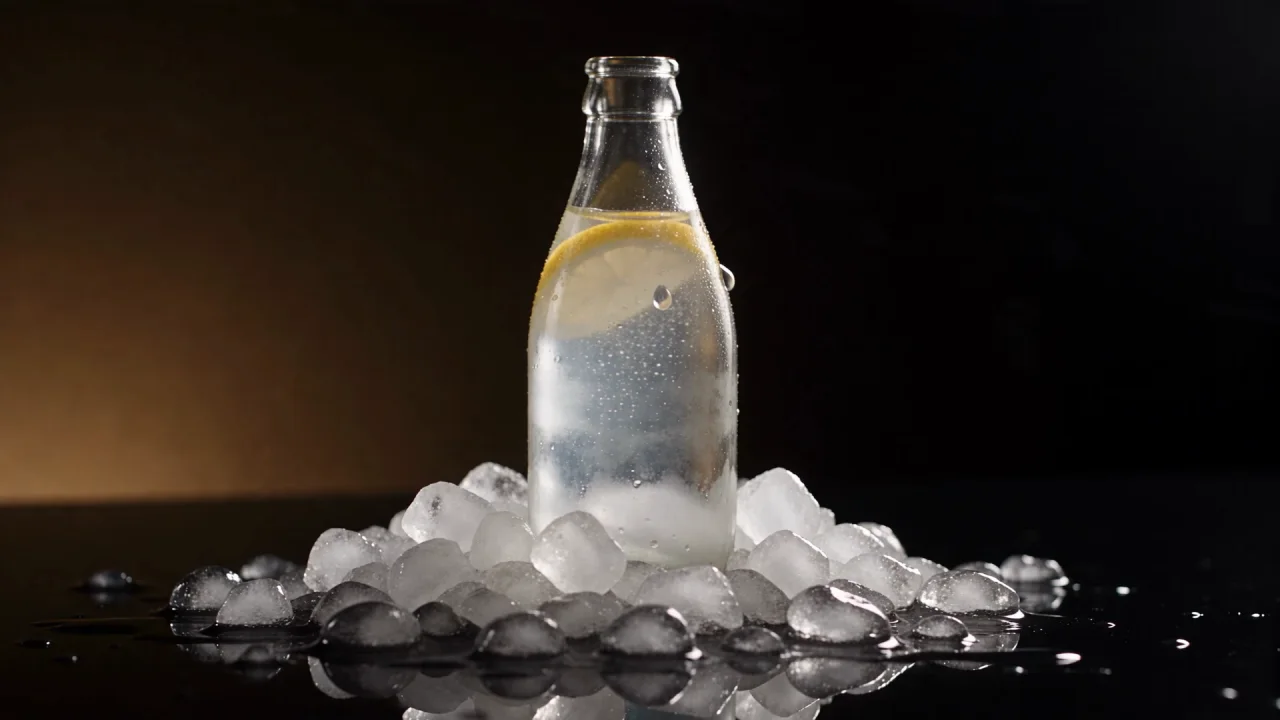
1080p · 5s · Synced foley
Turn any still image—or paired Start and End keyframes—into a 1080p, 25fps video with synchronized sound in your browser.
Uploaded reference images are used only to run your generation and are deleted automatically within 24 hours.
1 credit ≈ $0.067 · 5s ≈ $2.00 (6 credits/sec) · Minimum top-up $10 (150 credits) · Failed runs auto-refund · Google sign-in on Generate
1080p 25fps 4–30s Native audio Up to 20 references
See how MAGI-2 animates a single still image into 1080p 25fps motion with native sound design.
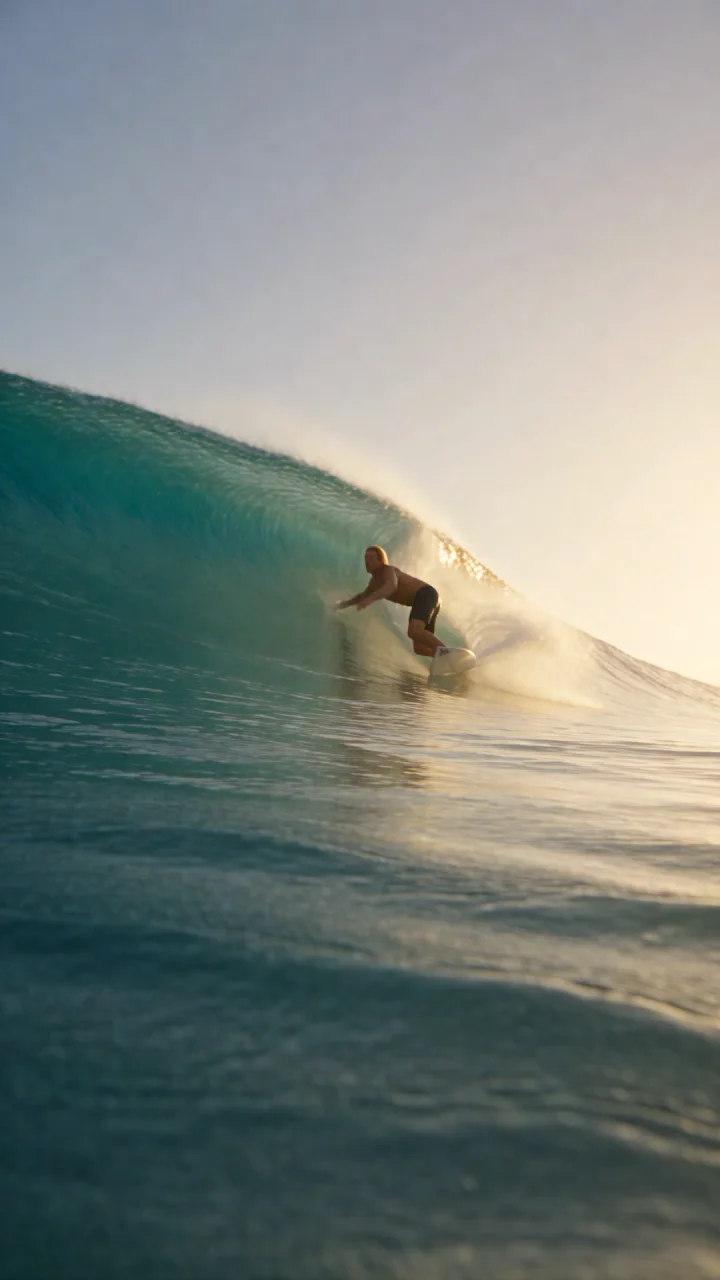
Yes—MAGI-2 supports pure text-to-video, single-image animation, Start-and-End keyframe bridging, and combined multimodal reference-to-video inside the same browser composer above. When you attach an image, MAGI-2 preserves the opening subject geometry, wardrobe, typography, and lighting palette while synthesizing natural motion and synchronized 48kHz audio at 1080p and 25fps.
| Workflow | Required inputs | What MAGI-2 locks | Best use case |
|---|---|---|---|
| Start Frame (Image-to-Video) | 1 Start image + motion/audio prompt | Opening framing, product shape, facial identity, lighting | Bringing product stills, portraits, or concept art to life |
| First & Last Frame | Start image + End image + transition prompt | Exact opening frame and exact closing composition | Seamless ad transitions, before/after reveals, looping shots |
| Multimodal Reference (Both) | Text + up to 20 files (10 img, 5 vid, 5 audio) | Character likeness across angles, props, camera rhythm, voice timbre | Multi-shot storytelling, brand campaigns, targeted clip edits |
To turn a still image into a 1080p MAGI-2 video, drop a JPG, PNG, or WebP file under 5MB into the Start slot above, describe only the motion and sound you want to happen next, set length and aspect ratio, and click Generate.
16:9 for landscape stills, 9:16 for vertical phone photos, or 1:1, 4:3, 3:4, and 21:9 to match your source composition cleanly.6 credits per second). Sign in with Google when prompted, wait for cloud rendering, and download your 1080p MP4.Upload clean, high-contrast JPG, PNG, or WebP images under 5MB with matching aspect ratio and minimal text overlays for the sharpest 1080p image-to-video results.
JPG / JPEG, PNG, and WebP (up to 5MB per image). Phone photos larger than 5MB are automatically resized in the browser before upload, or you can export a clean 1080p–2048px JPG.Use Single Image-to-Video when you want to animate one exact composition, and switch to Multimodal Reference when you need MAGI-2 to combine separate character sheets, product angles, lighting stills, motion clips, or audio tracks into a new scene.
For example, if you have a front-facing photo of a beverage bottle, a separate studio lighting reference, and an audio clip for pouring sound, Multimodal Reference lets you attach up to 10 images, 5 video clips, and 5 audio clips (maximum 20 files total) in a single job so the model respects all constraints without freezing the opening frame.
Yes—all uploads travel over HTTPS/TLS, uploaded reference images are used only to execute your render and are deleted automatically within 24 hours, and neither uploads nor finished clips are published to any public gallery. You retain ownership and commercial usage rights to clips generated from your own licensed materials. Avoid uploading government IDs, minors, or anyone's likeness without permission; review our Privacy Policy for complete retention rules.
Need help scripting prompts or fixing rejected uploads? Continue with our Step-by-Step MAGI-2 Guide or MAGI-2 Troubleshooting Guide.
Direct answers on Start/End keyframes, supported image formats, credit costs, and 24-hour upload auto-deletion.
Yes. Drop a Start frame into the first slot and an End frame into the second slot in the composer above. MAGI-2 generates the intermediate camera path, motion, and synced audio bridging both frames cleanly at 1080p.
Magi 2 Play accepts JPG, PNG, and WebP images up to 5MB each. In Multimodal Reference mode you can attach up to 10 images alongside up to 5 reference videos and 5 reference audio clips (20 files maximum per job).
No. Synced dialogue, environmental foley, and background music are included in the flat 6 credits per second rate (30 credits for a 5-second 1080p clip). You can toggle audio off anytime if you want a silent clip.
Uploaded Start frames, End frames, and reference images are used solely to render your generation and are automatically deleted within 24 hours. Finished MP4 videos stay private in your Account until you delete your account.
Yes. Open this page in iPhone Safari or Android Chrome, tap the Start frame slot, choose a photo directly from your camera roll, pick 9:16 or 16:9, and generate with no app install.